
From Built to Optimized: Getting More from Your First Xperience Automation
The newsletter subscription reminder is the right first automation to build. It's self-contained, marketer-buildable, and delivers immediate value. But building it is only the beginning.
This article covers what comes next: designing it well from the start, making the emails impactful, connecting it to Xperience's measurement tools, and using Campaigns to tie everything together.
This is the detailed article for Scenario 1 of Xperience Automations: You've Been Meaning to Explore Them. Here's What's Been Waiting. If you haven't read the main article yet, start there. It covers the newsletter reminder scenario and four others, and gives you the full picture before diving in here.
This post was written for Xperience by Kentico v31.3.0. Please consult the documentation for any feature or API changes when using a different version. Be sure to check the System Requirements in the product documentation.
Automation design principles
These principles apply to every automation you'll ever build in Xperience, not just this one. The newsletter reminder is a good place to learn them because it's simple enough that the principles are easy to see.
Give every step a descriptive name
The default step names tell you what type of step it is. A good name tells you what it does in this specific automation.
"Wait" becomes "Wait 2 days for confirmation."
"Condition" becomes "Is confirmed?"
"Finish" becomes "Already subscribed" or "Reminder sent."
This pays off immediately in the Statistics view, where you can understand the automation at a glance without opening every step. It will matter even more as AIRA and AI agents use automation structure as context for evaluation and recommendations.
Every branch must end with a Finish step
This isn’t just cosmetic. The Finish step tells Xperience, and your team, that a contact has completed the automation rather than simply stopped progressing. It's visible in the automation's Statistics view and in individual contact records.
Named Finish steps make the difference between "172 contacts triggered this automation" and "117 were already confirmed, 55 needed the reminder." That's actionable data. Unnamed or missing Finish steps are like ending a race just before the finish line.
Maybe the most important impact the Finish step has on customer experience is this: automations with a recurrence setting of "If not already running" require that contacts are in a Finish step for the process to start again.
Here are some practical negative outcomes of this misconfiguration:
- Contacts only a receive a "Thanks for your response" email from their first Contact Us form submission.
- A contact couldn't find the email newsletter double opt-in confirmation email and can't sign up, no matter how many times they resubmit the sign-up form.
- Automations that trigger custom activities or set contact field values simply stop working after their first run for each contact.
Link connected automations through names or campaigns
If you use the Log custom activity step and a custom activity trigger to connect two automations, apply a naming convention to the automations themselves.
Spring 2026 product promotion 1 - discount email
Spring 2026 product promotion 2 - purchase reward
Spring 2026 product promotion 3 - elevate customer tier
You can also use campaigns to group automations and their content or form assets together as a logical group.
Email content strategy
This automation sends one of two emails depending on the condition result. Most teams send the same confirmation email that the visitor already received. That works, but a dedicated reminder performs better - it acknowledges the context rather than ignoring it.
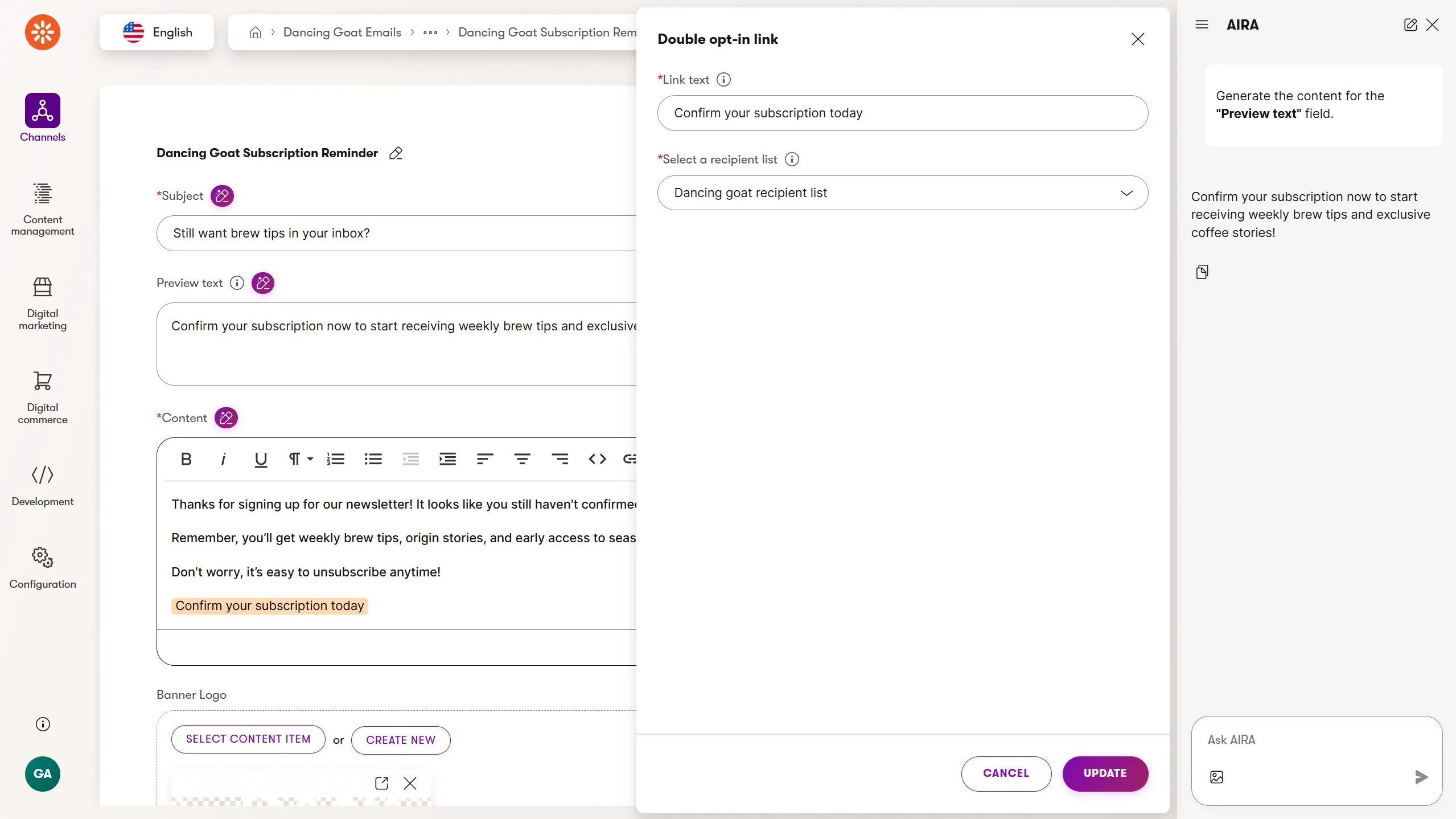
Original confirmation email (sent by the form autoresponder, outside the automation):
Subject: One click to confirm your spot ☕
Brand intro, what they'll receive, prominent double opt-in CTA
Reminder email (sent by the automation):
Subject: Still want brew tips in your inbox?
Warmer and shorter. Acknowledges they signed up. Reassures them the list is easy to leave. Re-presents the confirmation CTA.
The distinction matters: the confirmation email sells the newsletter. The reminder email removes friction. Different jobs, different tone.
Use AIRA to draft and refine both emails. AIRA's content generation and text refinement features can significantly accelerate authoring, especially when you need two versions of the same message with meaningfully different tones.
Connecting to Campaigns
Campaigns give you a central place to coordinate all assets and activities related to the newsletter.
The sign-up form
The confirmation page
The autoresponder and reminder emails
The reminder automation
When you create a campaign, a dedicated customer journey is automatically generated and used to measure the success of the campaign over time. Campaigns also store a campaign brief which gives your team and AIRA context about the purpose of the campaign, its assets, and its customer journey.
Create a Campaign for the newsletter subscription process. Set the campaign goal as a target number of confirmed subscribers. Add the related assets - the form, the emails, the pages - as campaign content. The campaign's customer journey becomes the measurement layer: stages map to form submission, reminder sent, and confirmed subscription.
This means you’re no longer evaluating the automation in isolation. You’re evaluating the entire subscription experience as a coordinated effort, and AIRA can assess campaign performance against the goal you set.
For teams running multiple newsletters or planning to add more automations over time, Campaigns also helps prevent assets and reporting from becoming disconnected. Each newsletter gets its own campaign, and each campaign has a clear owner, a clear goal, and a clear picture of what's working.
Connecting to Customer Journeys
Once the automation is running, the next question is whether it's working. The Statistics view shows you how many contacts passed through each step, but it doesn't tell you whether the reminder email is actually moving people through the broader newsletter subscription journey.
That's where Customer Journeys come in.
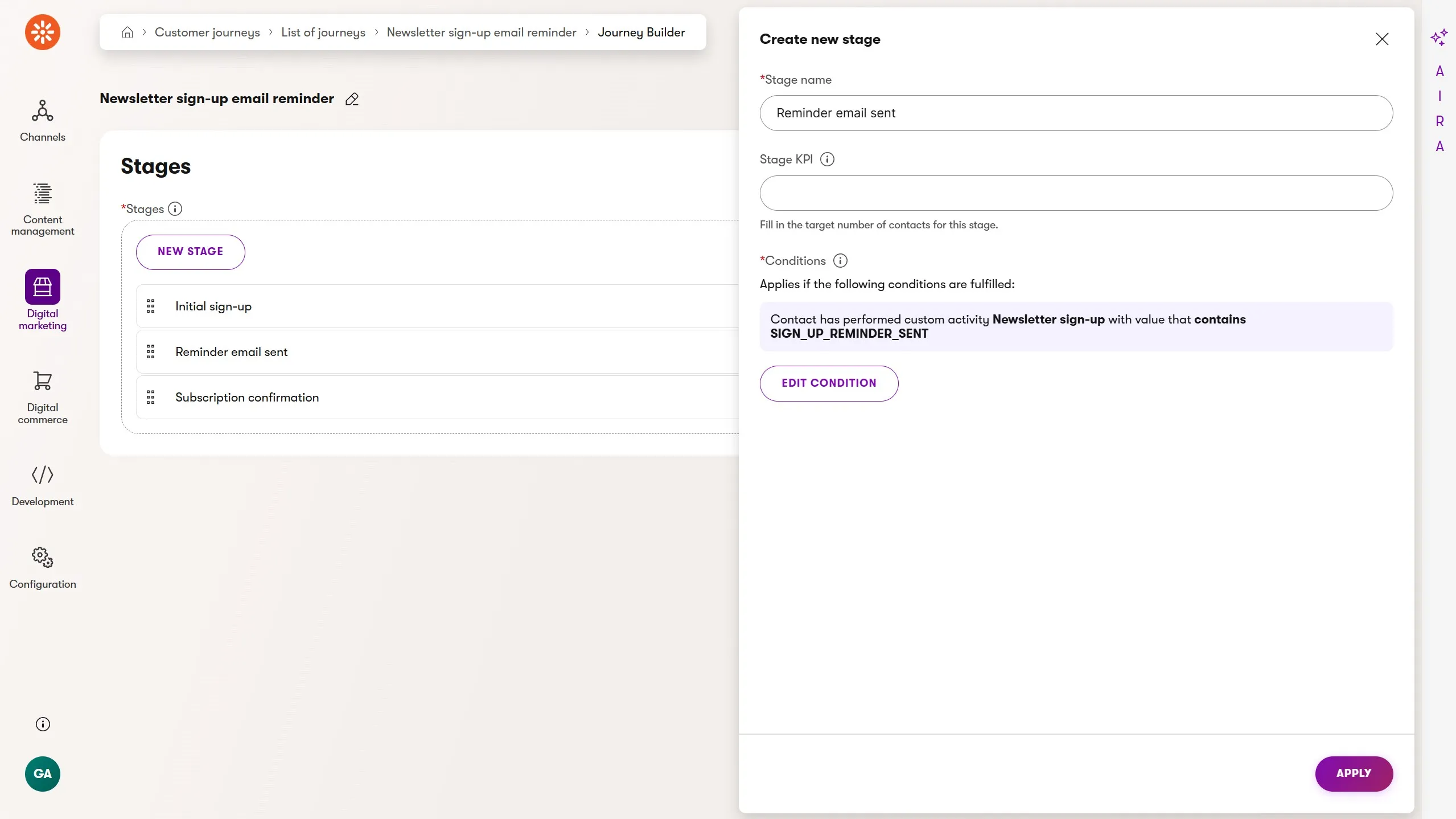
Customer journeys bring measurement, insight, and optimization to the strategy, content, and actions behind your automations. The stages in a customer journey capture key engagement points in a customer’s experience as they move toward a goal you define.
We can use built-in activities, like page visits or email link clicks, to model customer engagement along a journey. We can also represent the journey stages with more unique and richer intent signals, like custom activities.
Add a custom activity type called "Newsletter reminder sent" and add a Log custom activity step to the automation immediately after the reminder email is sent. This gives you a trackable signal that a specific contact reached this point in the automation.
Then either use the customer journey from your campaign or build a new one that maps the full subscription path:
- Form submitted: Sign-up form submitted
- Reminder email sent: Automation triggered the custom activity
- Confirmed subscriber: Visited the confirmation page
With this journey in place, the Customer Journey Optimization Specialist in AIRA can evaluate where contacts are dropping off and suggest improvements to the customer experience, whether that’s the form, the email, or the automation itself.
What to build next
The newsletter reminder is now built, measured, and connected. The natural next step depends on what your team is working on:
Post-purchase nurture: How to Build a Product-Specific Post-Purchase Automation in Xperience by Kentico introduces custom contact fields and engagement-gated email sequences
Content drip series: Chaining Automations in Xperience by Kentico shows how to use custom activities to connect multiple automations into a larger workflow
Back to the full picture: Xperience Automations: You've Been Meaning to Explore Them. Here's What's Been Waiting

Sean Wright
I'm Lead Product Evangelist and part of the Developer Experience division at Kentico. I work to help our community understand the strategy and value of Xperience by Kentico, with a focus on developers building digital experience solutions. I'm also responsible for Kentico's Community Programs.